Windows WMI Monitoring
Windows WMI Monitoring
Sometimes, you may want to monitor Windows servers remotely using WMI (Windows Management Instrumentation). You can do this by using the Windows WMI Monitoring plugin.
Create Windows WMI Monitoring
To start monitoring a Windows server, ensure you have set up a Data Collection Agent on a Windows host. If not, follow the instructions to add a Windows Collector first.
Once you have the Windows collector, follow the steps in Add Monitor Service and select the Windows (WMI) monitoring plugin:
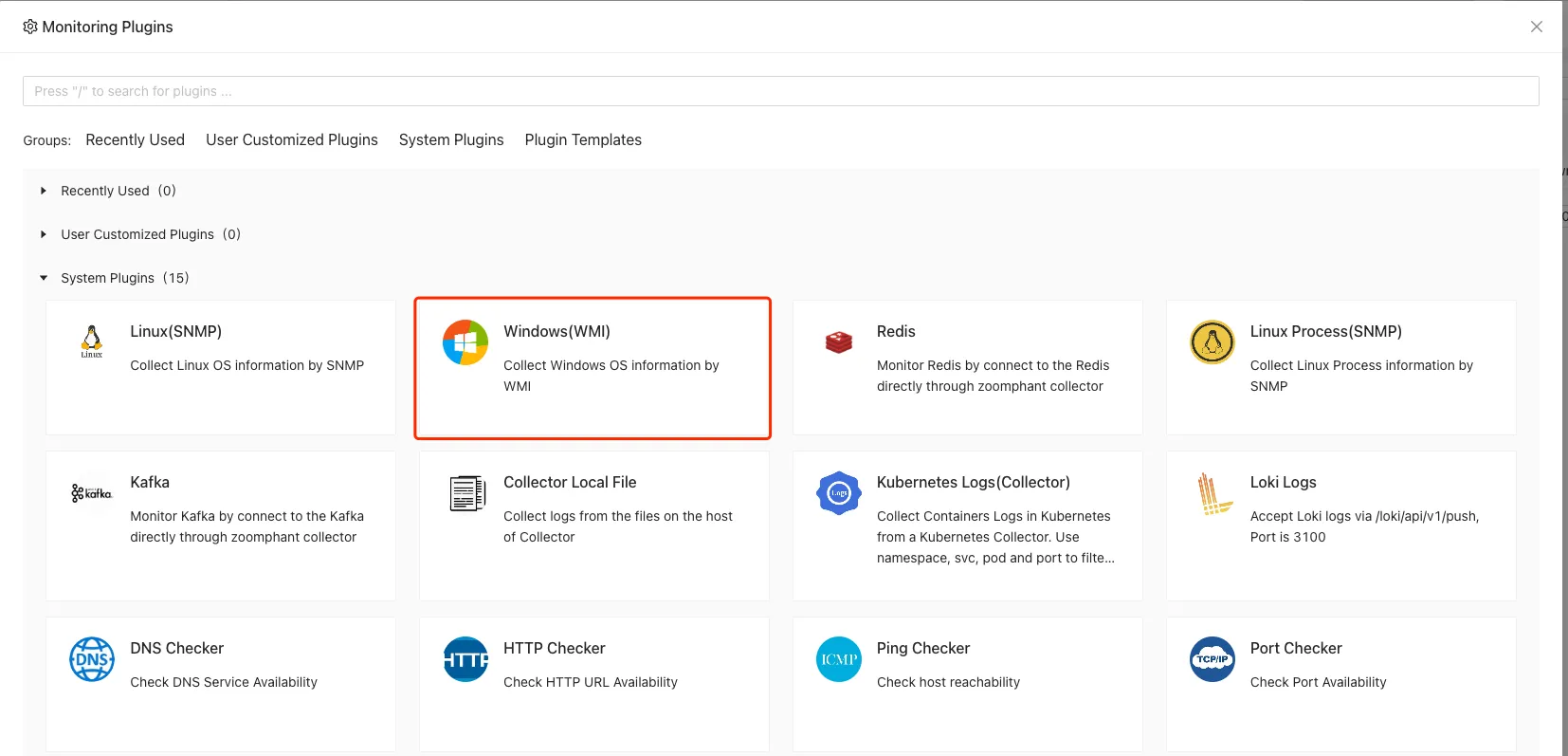
Note: Make sure to select a Windows collector in the collector selection step.
Specify the Windows host or domain information along with the username and password to complete the setup:
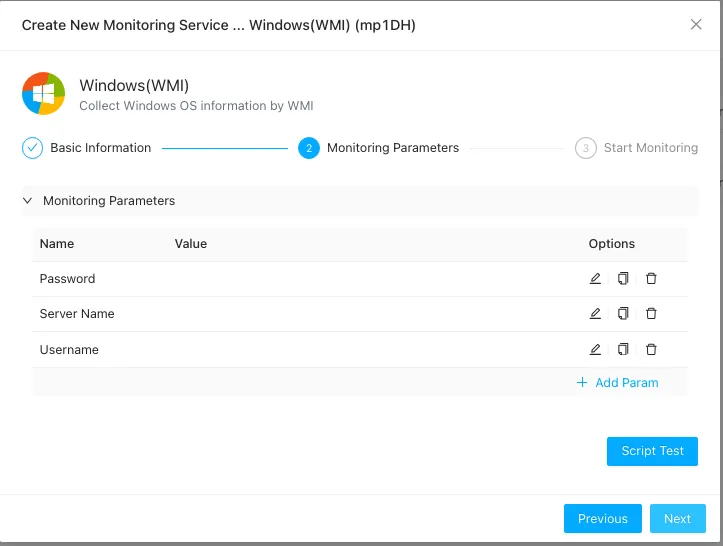
The following parameters are required:
- Server Name: The hostname or IP address of the remote Windows server.
- Username: The remote user account used to query WMI data.
- Password: The password associated with the username.
Please ensure the configured account has the correct permissions. For detailed steps, see How to Create a WMI Monitoring Account.
Understanding Windows Performance Metrics
After adding the monitoring service, wait a few seconds for data collection to initialize. Select the service from the list to view the Windows performance dashboard:
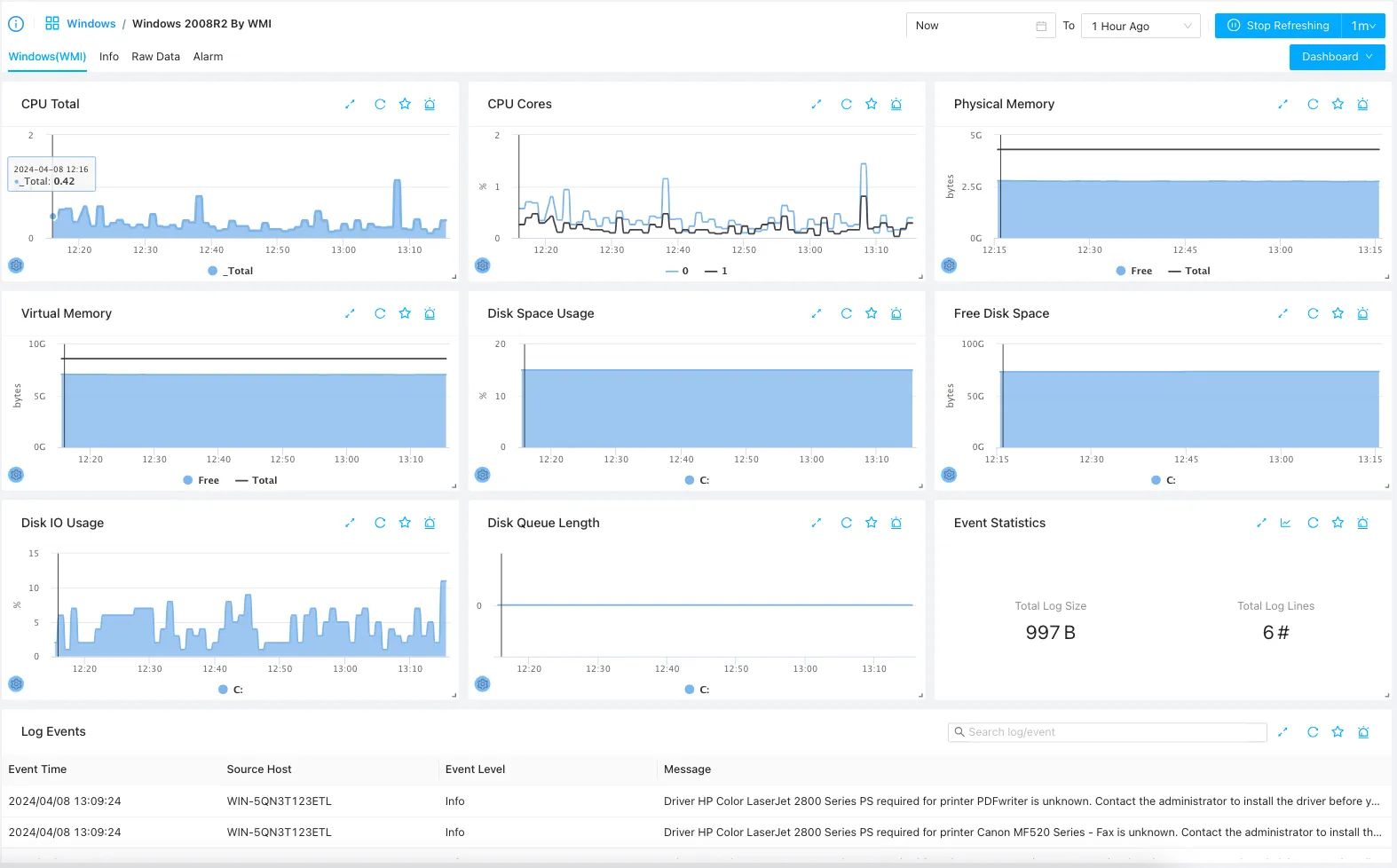
The dashboard displays basic resource utilization metrics as well as major event logs generated during the selected time range.