Quick Start
Quick Start
Getting started with ZoomPhant is simple. The steps below will help you get the Community Version up and running in just one minute.
Note: The Community Version is free for personal use. It is also free for business use by startups and small businesses, provided you register your deployment. You can register your business deployment here to comply with our license and receive product updates. For larger enterprises, please contact us at info@zervice.us.
Local Deployment
To deploy locally, ensure your environment has Docker 20+ installed. For stable performance, we recommend allocating 2 CPU cores and 8GB of free memory. Start the deployment using the following command:
docker run --hostname zoomphant -it -d -v /root/data:/data -p 8080:80 --name zoomphant zoomphant/zoomphant-pack:latest-v /root/data:/data: Specifies the persistent data storage directory. You can modify this path as needed. Failure to configure this will result in data loss when the container restarts.-p 8080:80: Sets the external port. If external access is required, replace8080with your desired port number.- Two image options are available:
zoomphant/zoomphant-pack:latestandzoomphant/zoomphant-aio:latest. The former downloads collectors directly from GitHub, while the latter integrates the latest collectors into the image (resulting in a larger image size).
Cloud Deployment
For cloud deployment (using AWS ECS as an example), follow these steps:
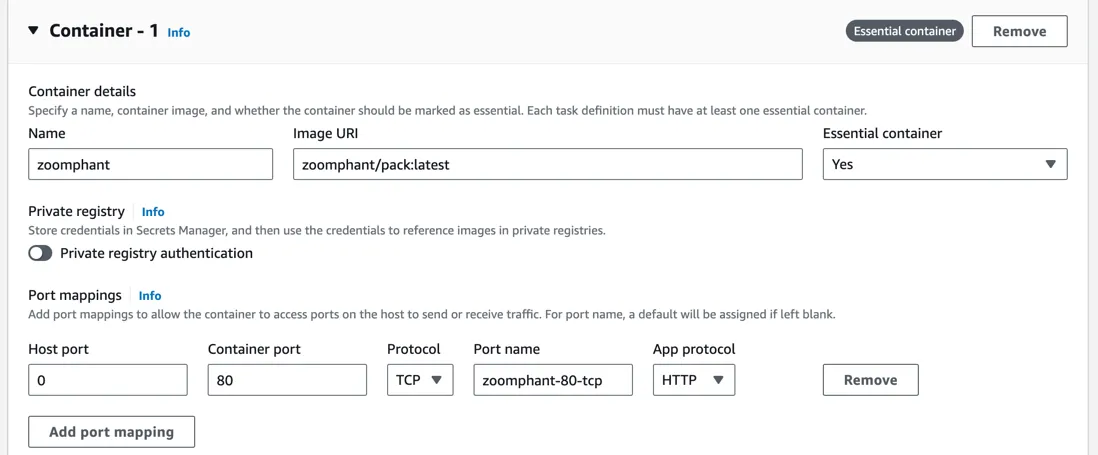
- Create a Task Definition in ECS and configure the container:
- Set the Image URI to
zoomphant/zoomphant-pack:latest. - Map at least port 80 to enable UI access and collector data reporting.
- Set the Image URI to
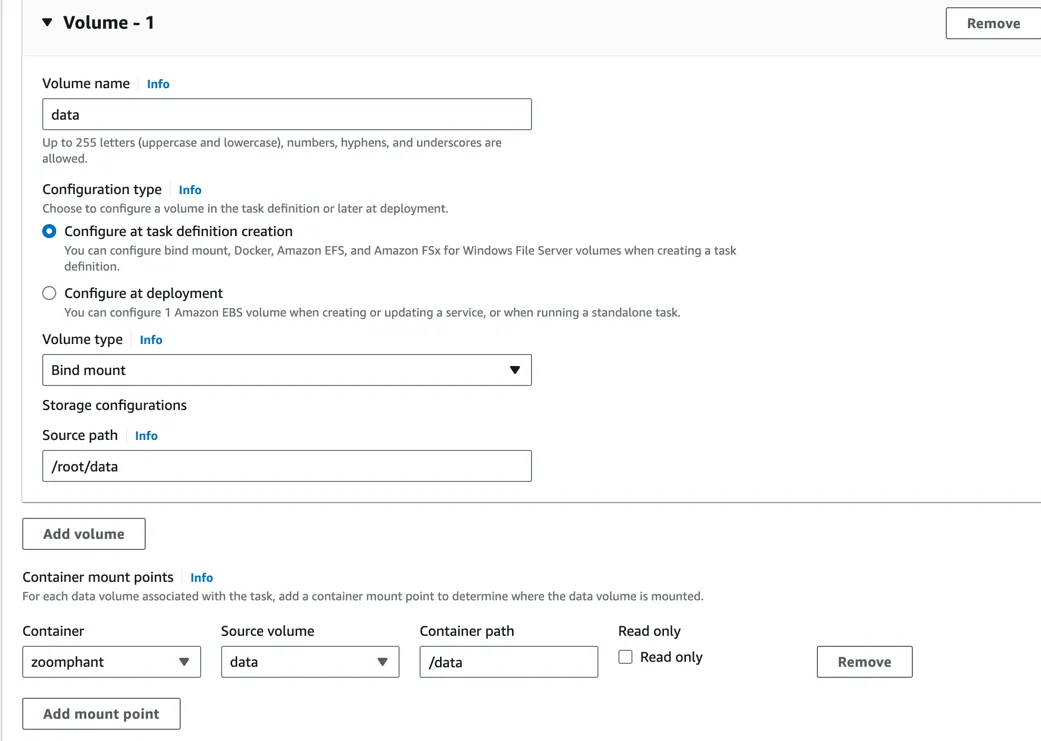
- Configure Volumes to map
/datato an EBS volume to ensure data persistence.
- Launch a service in a cluster using the task definition.
Getting Started
Access the system via http://<your_ip>:8080 in your browser. The default credentials are admin@zervice.local / admin. Make sure to change the default password upon your first login.
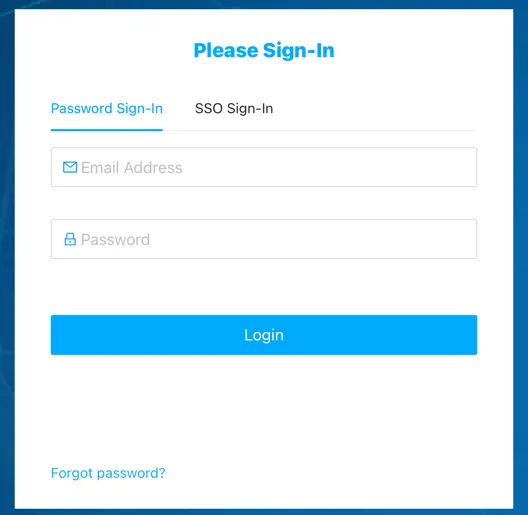
Upon login, you will enter the Wizard page by default. Follow the prompts to configure:
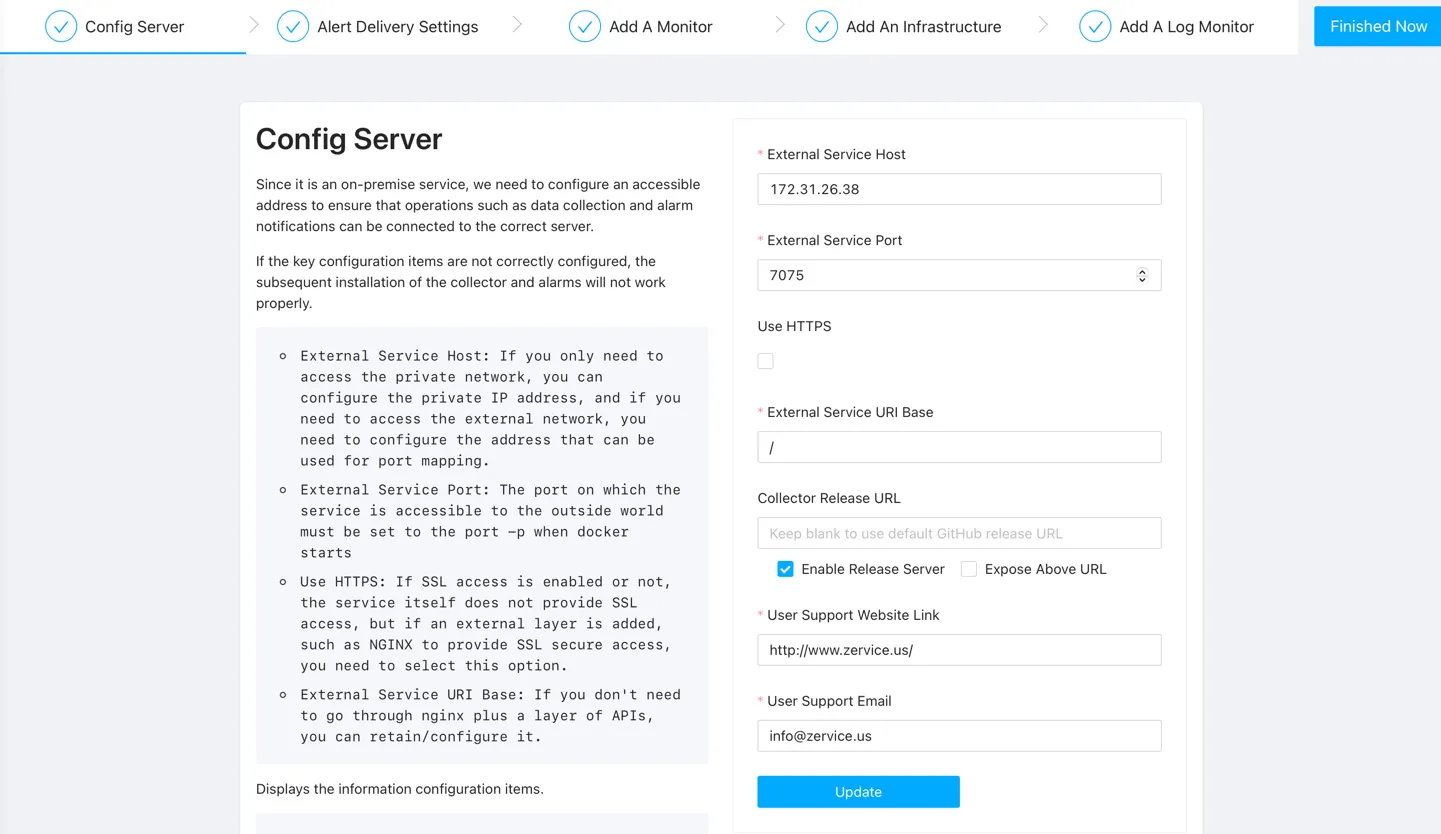
- System Configuration: Configure the system domain name for alert URLs and new collector installations.
- External Service Host and External Service Port: These critical settings are used when installing a new collector. Ensure this address is accessible. In an AWS environment, we recommend using the private IP of the EC2 instance to avoid network traffic charges.
- Enable Release Server: Check this if you are using the
packimage.
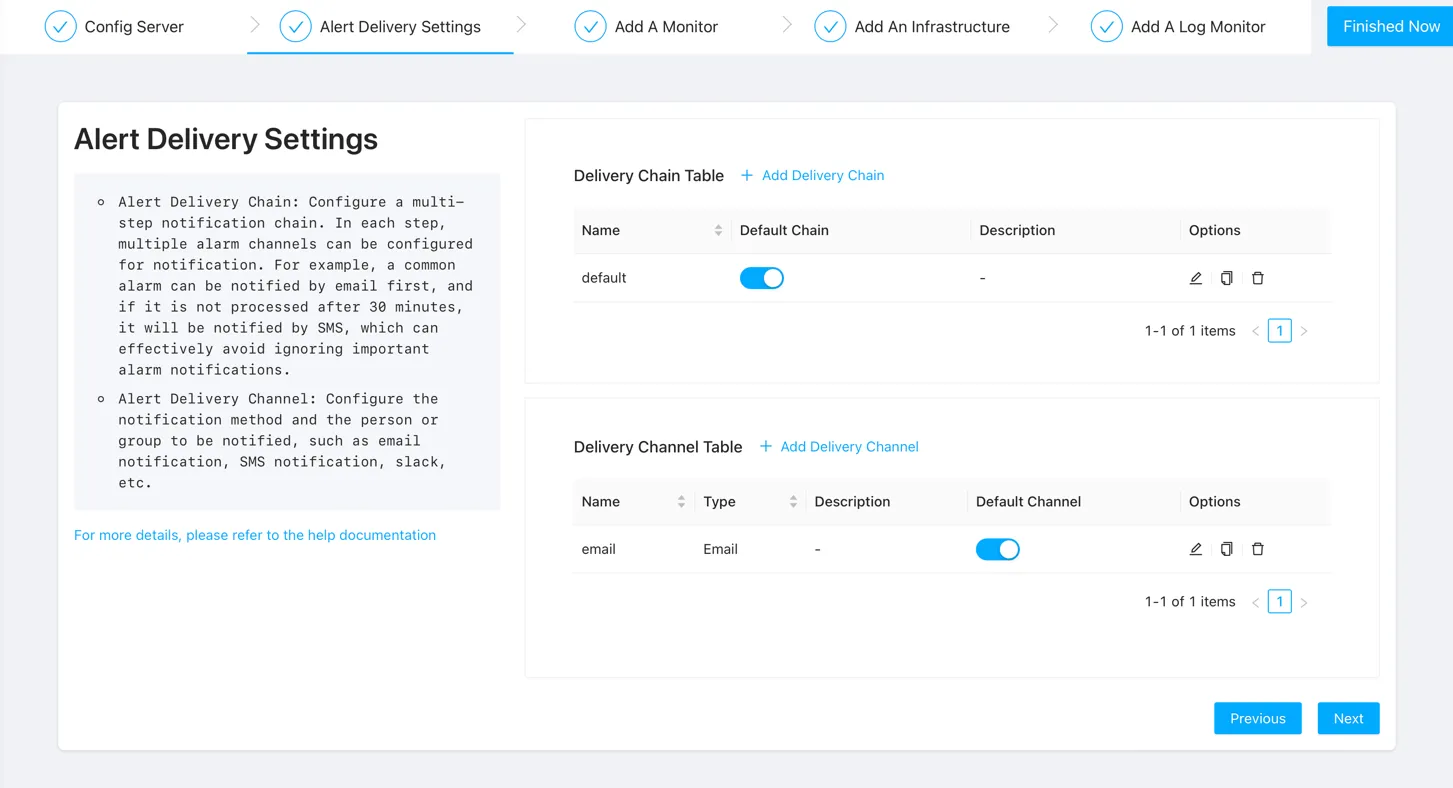
- Alert Delivery: Set up alert delivery to ensure timely notifications.
- Delivery Channel: Configure the communication channels (e.g., email, Slack) used to send alerts.
- Delivery Chain: Configure a sequence of steps to escalate or route alerts through different channels.
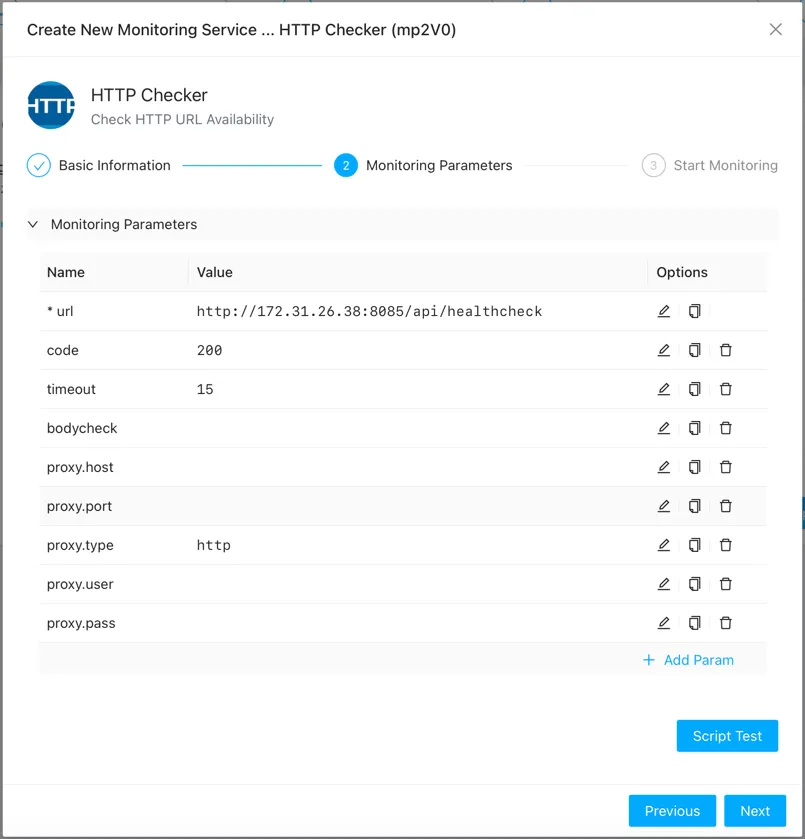
- Creating Monitors: Utilize the built-in collector to create your first monitor. We use an HTTP monitor as an example here since it only requires a URL.
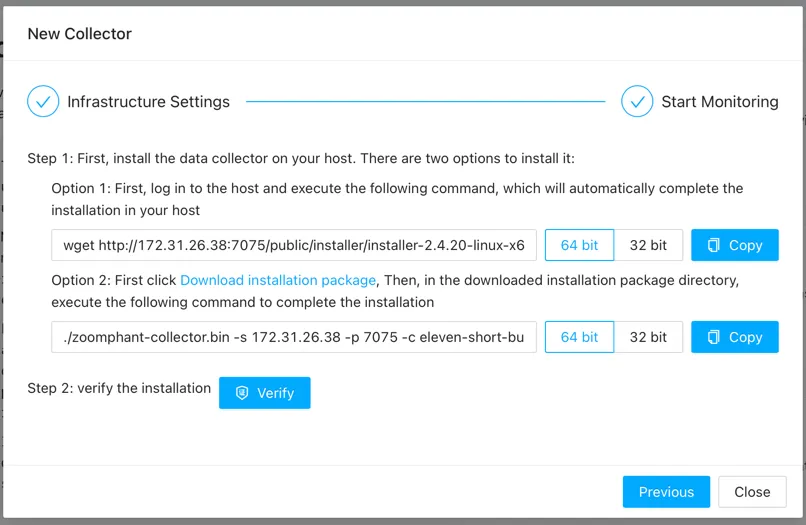
- Infrastructure Monitoring: If you want to monitor other servers or devices and find it too cumbersome to configure SNMP or WMI, you can install a local collector. This allows you to monitor the device in more detail and collect local log files. Select your target operating system (e.g., Linux) and run the provided command on the target server to set up monitoring.
- The command line includes the Address configured in the first step. Make sure this address is accessible from the target server.
- The command must be run as the
rootuser. - If
wgetis not available, you can download the installation package manually on the target server and execute the “Option 2” command.
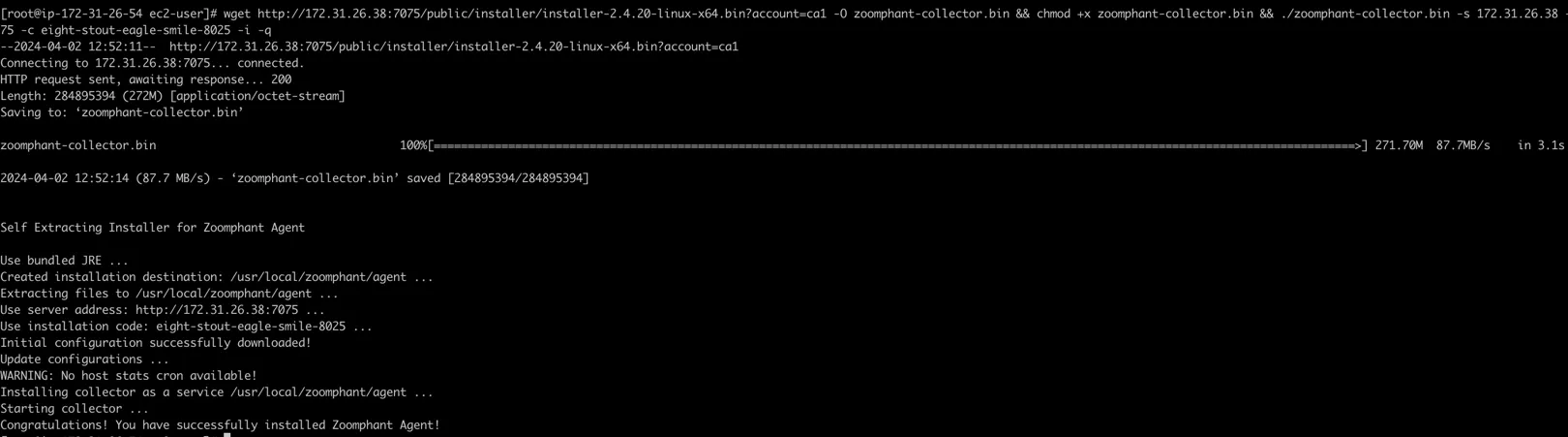
- Log Monitoring: Enable log monitoring by specifying a log file path that the collector can access. You can try this out using the built-in collector with the system’s Nginx access log.
- We use Grok to parse logs. You can customize the Grok pattern if you have a non-standard Nginx log format.
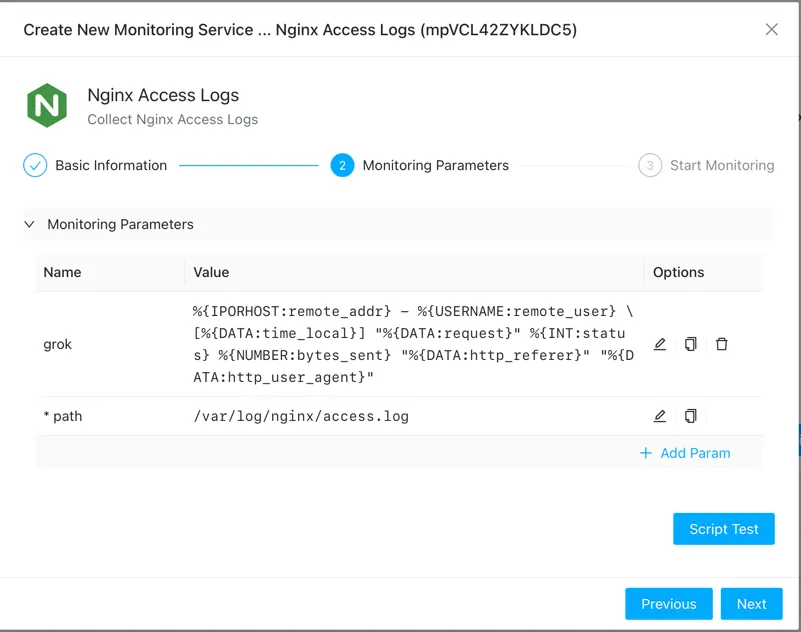
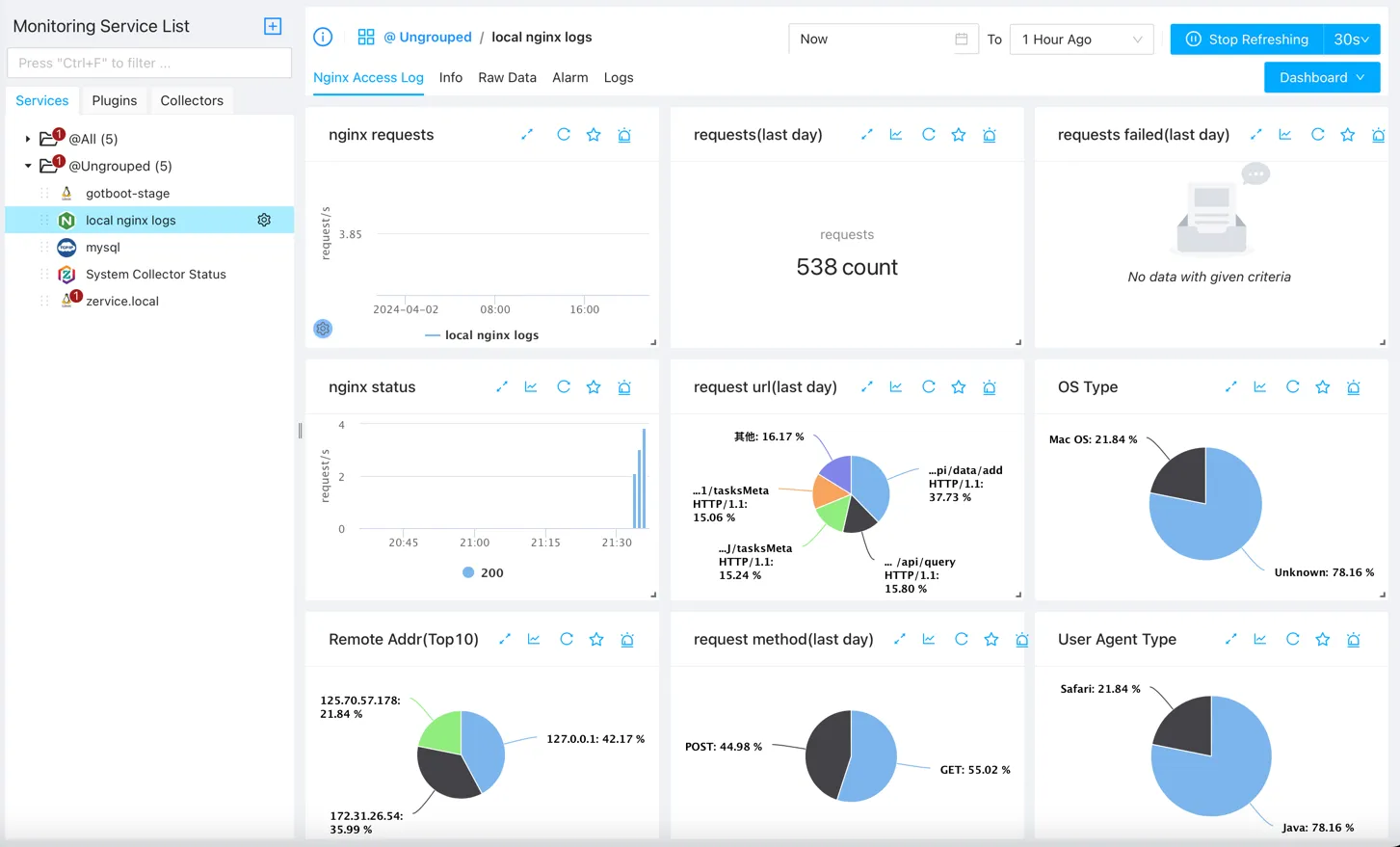
Upon completion, click Finish Now to exit the wizard. You can now access monitoring dashboards and manage services from the Services page in the left sidebar.