Windows Monitoring
Windows Monitoring
Windows Monitoring
Many enterprises rely heavily on Windows Server for business-critical operations. ZoomPhant supports Windows monitoring natively, providing comprehensive insights out of the box.
To monitor a Windows server, you must first install the Windows collector agent on the target machine. This agent performs general monitoring checks and leverages Windows-native interfaces (such as WMI and PDH performance counters) to gather system metrics.
Install the Windows Collector
Follow the instructions in Install Collectors and choose Windows as the underlying infrastructure.
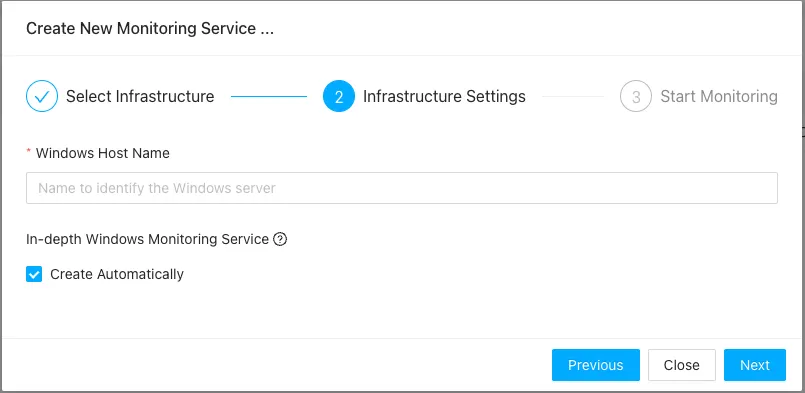
In step 2, provide basic information about the Windows system where the collector will be installed:
In step 3, you will be prompted to open a Windows command prompt (cmd.exe) and execute the generated installation command:
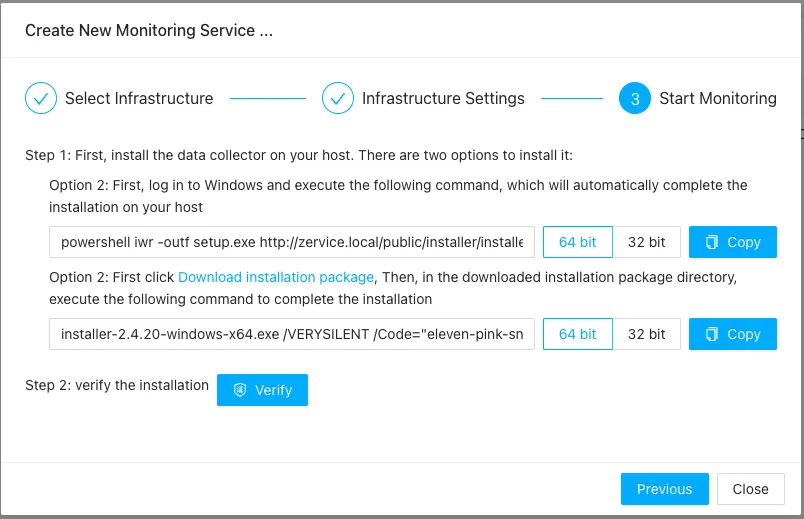
Note: If you are using PowerShell, you may need to adjust the syntax or run the command within a standard Command Prompt session.
Understanding Windows Monitoring Data
Navigate to the newly created infrastructure service to view the default Windows monitoring dashboards:
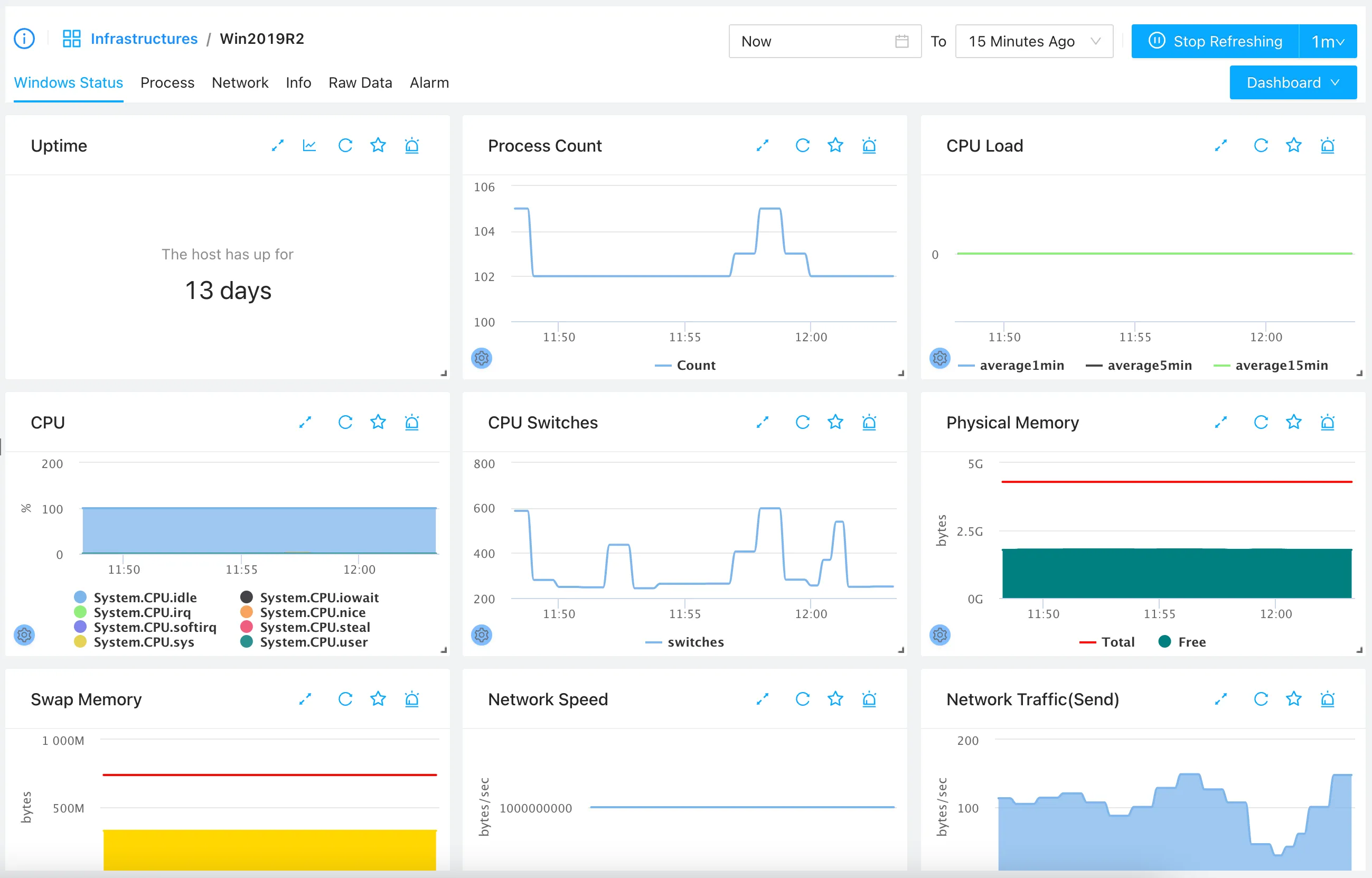
This dashboard provides a centralized view of the server’s health and resource usage.
Process Monitoring
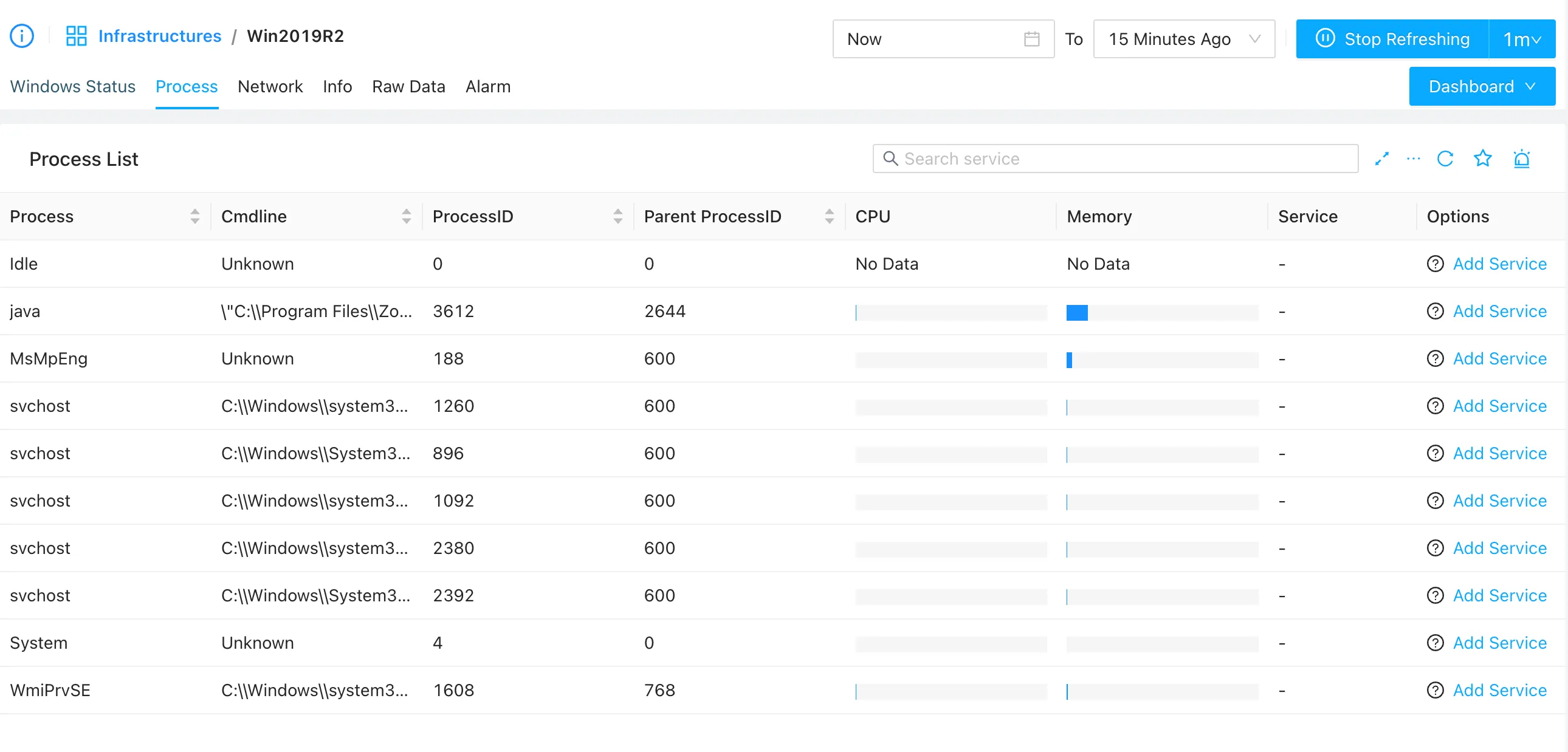
Switch to the Process tab to view the CPU, memory, and status of active running processes:
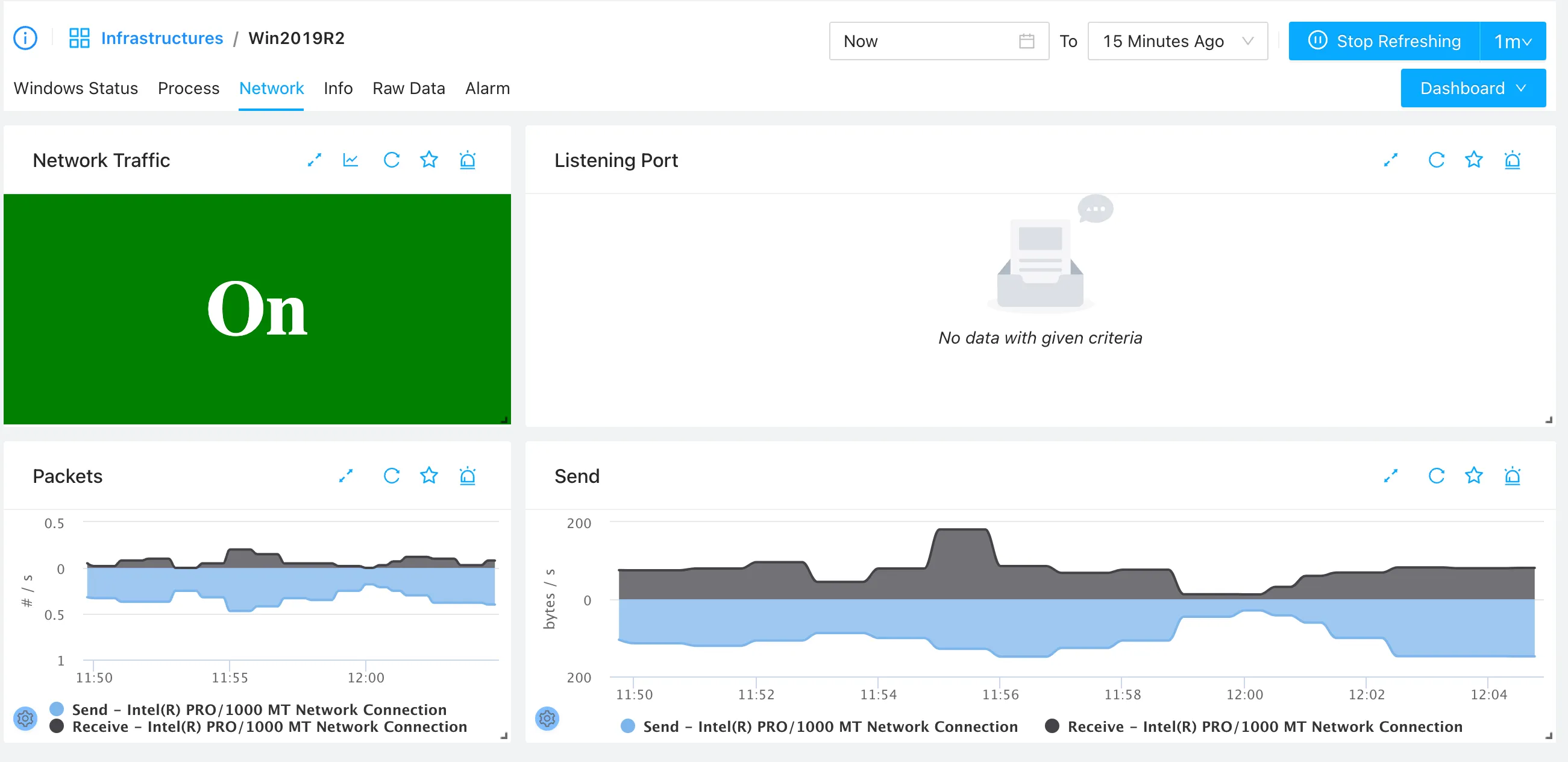
Network Monitoring
Switch to the Network tab to view the active network interfaces and throughput statistics: